English
Start

Focused workflow

A practical way to transcribe video to text free, no sign up

If you need to transcribe video to text free, no sign up, use this focused workflow to prepare your source, run one clean pass, and review the result before sharing it.

Review before publishing

Before you begin

A little preparation reduces failed uploads, incomplete audio, and transcripts that need unnecessary cleanup.

The workflow

One full run-through

Keep the first pass simple: identify the source, describe the desired result, then inspect the transcript instead of assuming every line is correct.

  1. 1

    Prepare the source

    Use a video you can access and check that the important speech is audible. If the source is online, keep its link ready; if it is local, know where the file is stored.

  2. 2

    State the output clearly

    Describe the kind of transcript you need, such as a readable interview draft, a rough meeting record, or spoken text arranged for later editing.

  3. 3

    Review the returned text

    Read through names, specialist terms, numbers, and places where speakers overlap. Correct those details before using the transcript as notes, captions, or published copy.

Practical choices

What fails

Most weak results come from the source or the request, not from the idea of transcription itself. These checks help you diagnose the problem quickly.

Students and researchers

A lecture or recorded interview contains long stretches of speech, unfamiliar names, and occasional background noise.

Start with a clear description of the desired draft, then verify quotations and technical terms against the recording.

transcribe video to text free
Content editors

A podcast, webinar, or social clip needs a searchable text version before editing or repurposing.

Use the transcript as a first draft, but preserve the original video for checking timing, emphasis, and speaker changes.

transcribe video to text free

Small teams

A shared recording must become notes without adding a complicated handoff between the person who has the video and the person who edits it.

Keep the request specific and review the same returned text together so corrections are made once, close to the source.

transcribe video to text free

Video creators

A finished video needs spoken text for planning descriptions, extracting quotations, or preparing a later captioning pass.

Treat the output as an editable starting point and check every public-facing line before publishing.

transcribe video to text free
  • Unprepared source
  • Reviewed text draft

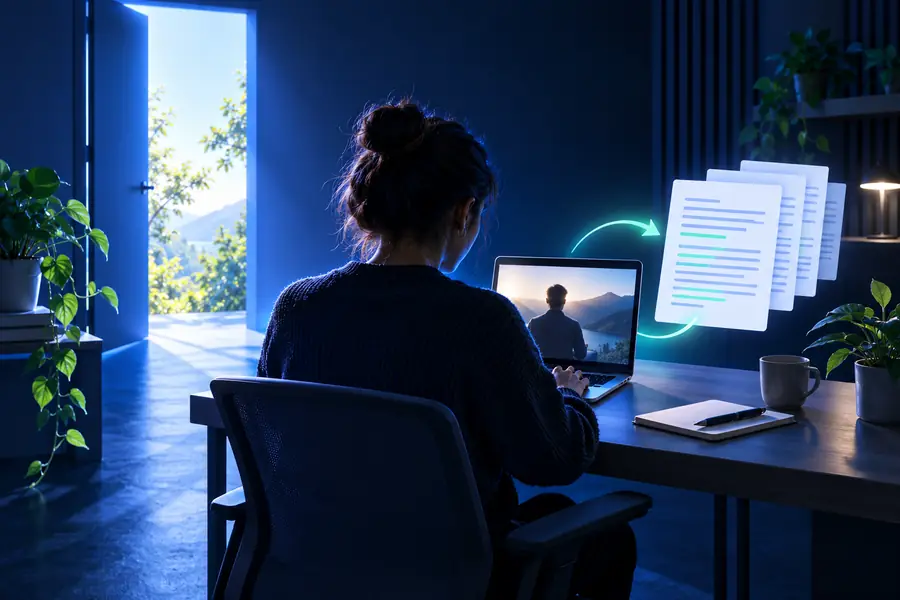
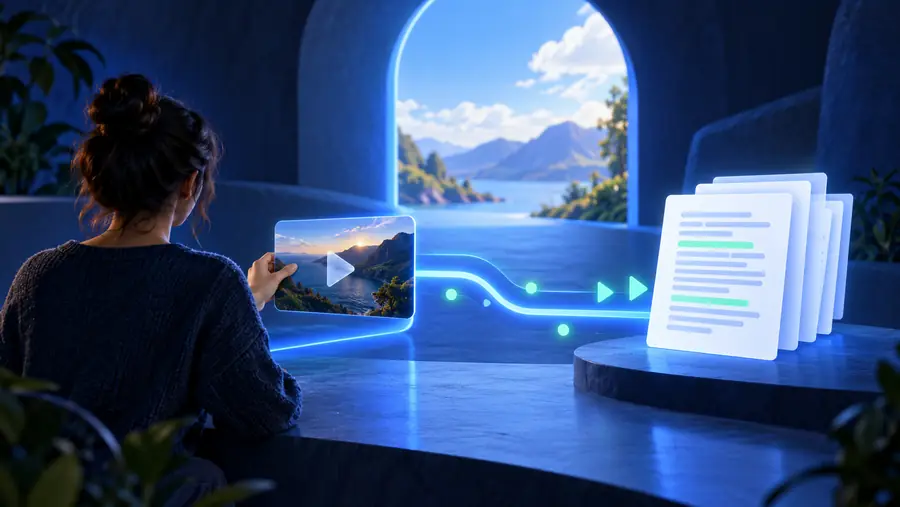
The useful change is not just video to text; it is moving from an unclear source and vague request to a transcript you can check and reuse.

Video source prepared for transcription
Editable transcript draft ready for review

Turn the next recording into a workable draft

When the source is ready, a specific request and a careful review can remove much of the friction from transcription. Open the workspace with a clear goal, then keep the original recording nearby while you verify the result.

Open transcript workspace
  • Prepare the source before sending it
  • Describe the output you actually need
  • Check names, numbers, and unclear speech

Common questions

FAQ

It describes a workflow where someone wants to turn spoken video content into text while avoiding unnecessary account or payment friction. The practical focus is on preparing the source, making a clear request, and reviewing the resulting draft.

You can begin with the complete source when it is accessible and the audio is usable. For long or difficult recordings, review the output in sections so missing speech, speaker changes, and technical terms are easier to catch.

Common causes include low volume, background noise, overlapping speakers, unclear pronunciation, and specialized vocabulary. Check the recording first, then revise the request and manually compare uncertain passages with the original video.

No. A transcript is best treated as a working draft until names, numbers, quotations, and important claims have been checked against the recording. This is especially important when the text will become captions, research notes, or public copy.

Start creating Start